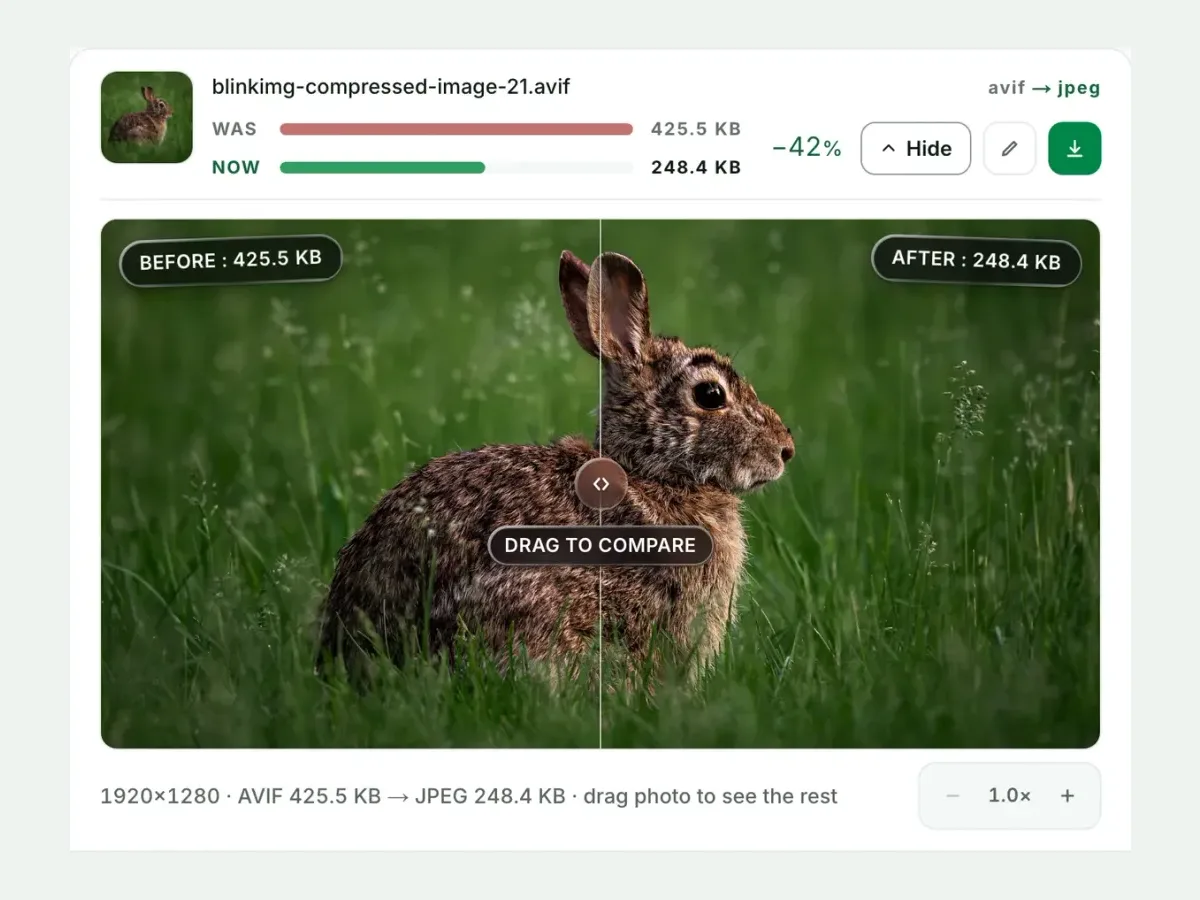
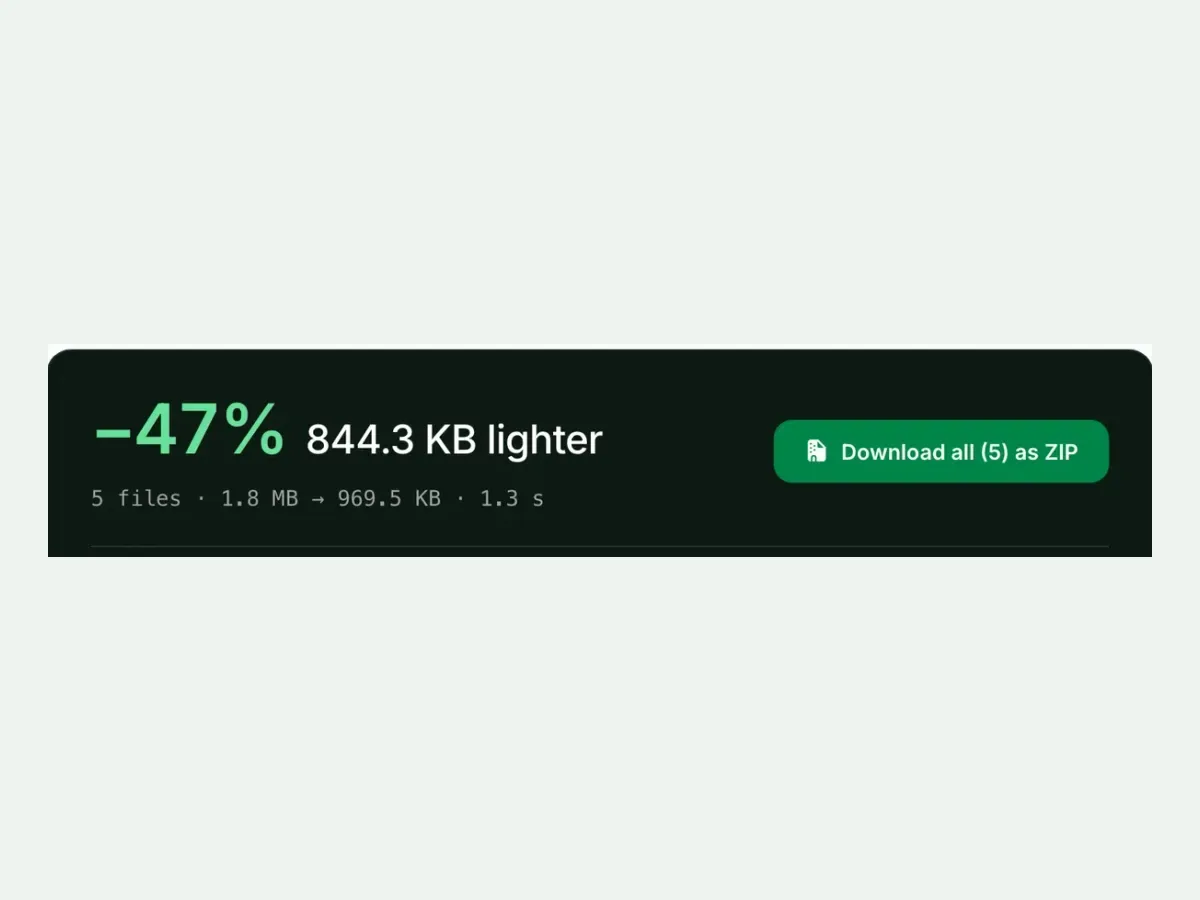
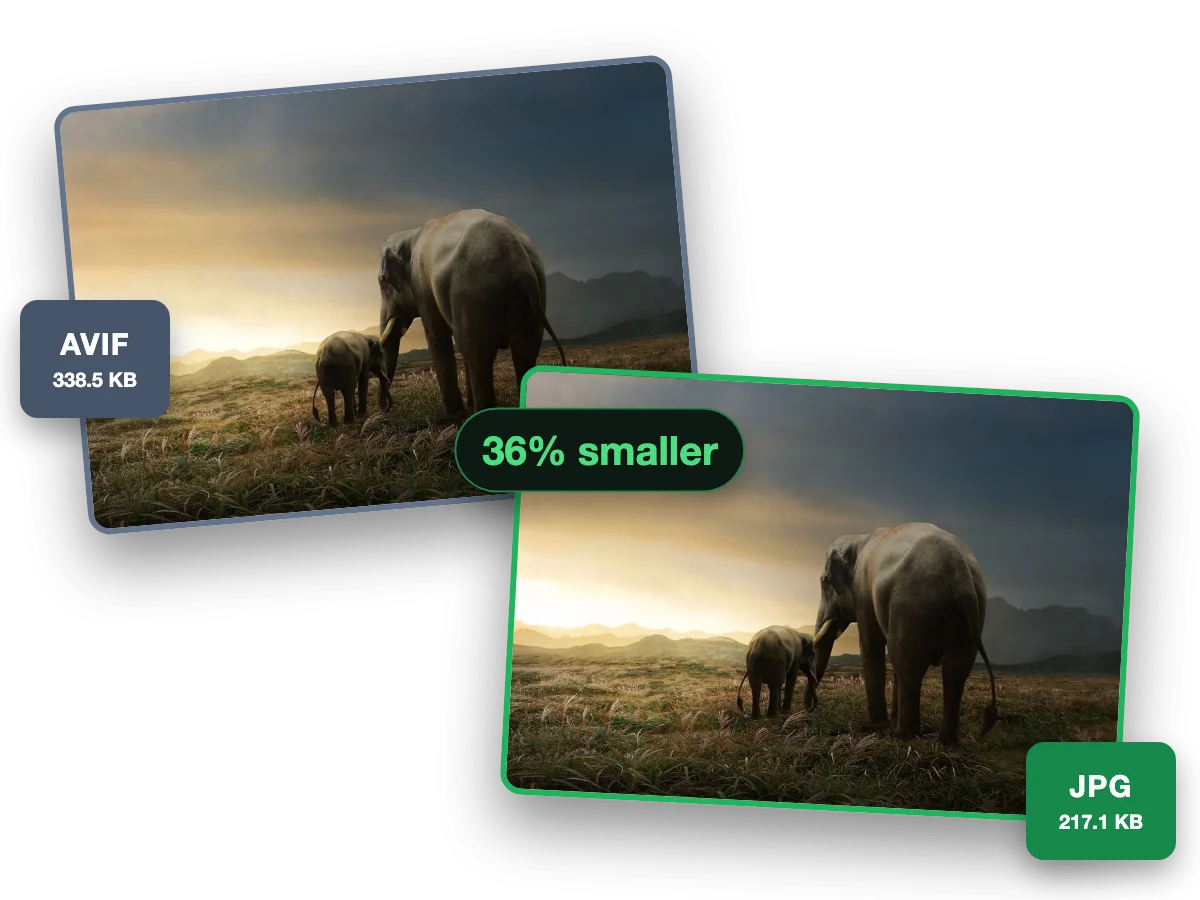
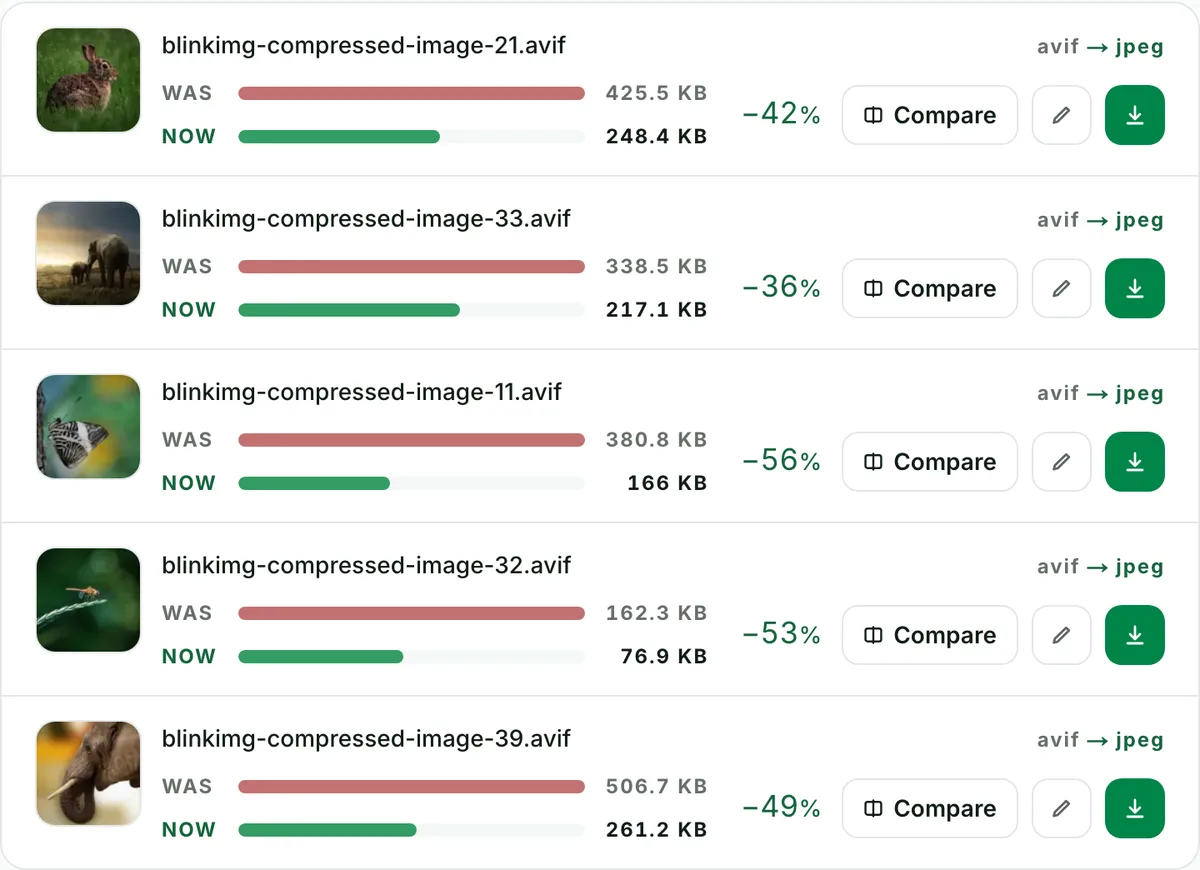
Turn AVIF images into JPG for the widest possible compatibility: every browser, app, and device opens a JPG. Convert up to 10 at once, free and online. Part of the image converter.
– / –
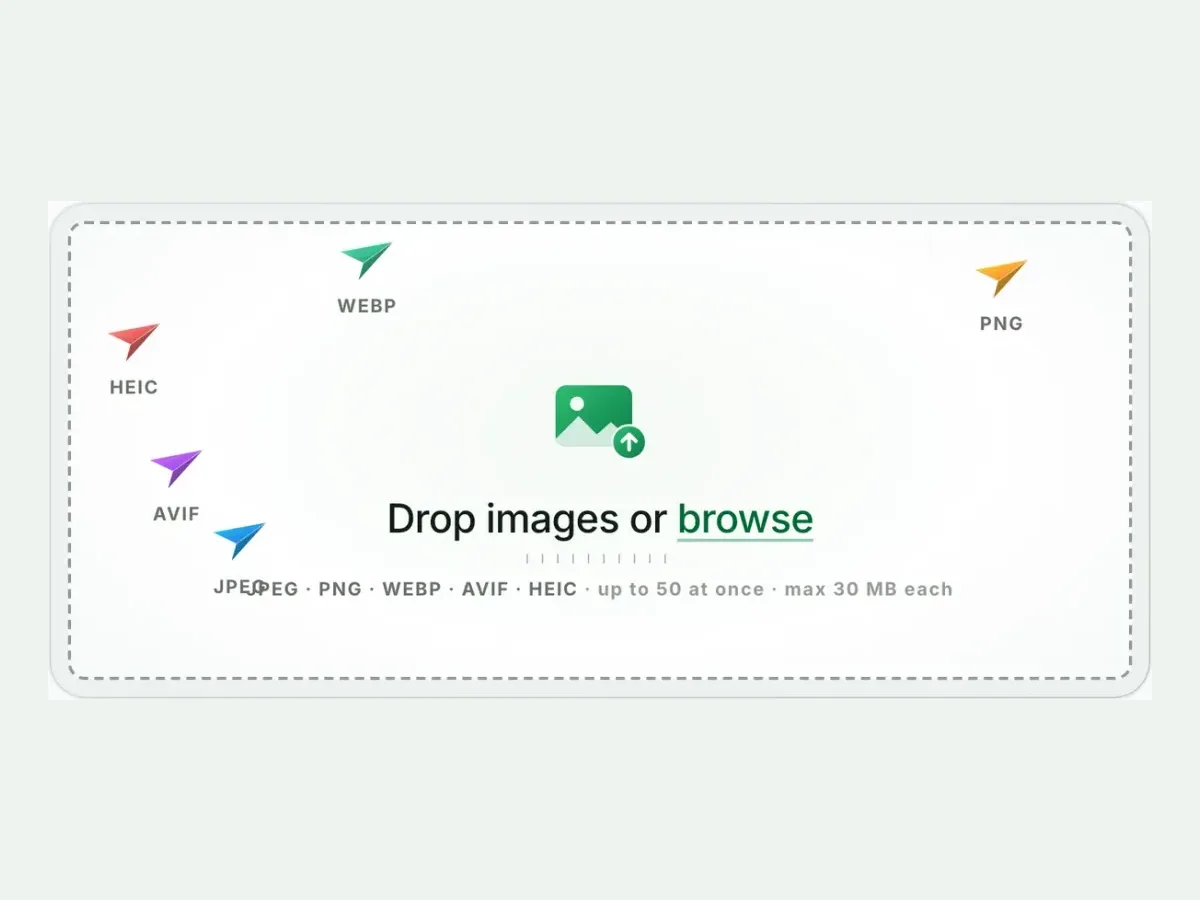
Drop images or browse
JPEG · PNG · WEBP · AVIF · HEIC · up to 50 at once · max 30 MB each
The official route is Microsoft's free AV1 Video Extension, and it works for most files, most of the time. It is a video decoder pressed into image duty. Certain AVIF variants still fail, thumbnails render slowly or not at all, and every new machine needs the extension installed again. The one-time fix is converting the file to JPG. The next thirty years of software will open a JPG without being asked. That's what this page is for.
AVIF to JPG: what the JPG weighs, and why a bigger file is normal
At each format’s default a photo costs more bytes as JPEG than as AVIF: our camera photo measured 605.5 KB against 288 KB. You are not "losing compression". You are buying compatibility. Our reference AVIF was saved well above the quality Auto picks, which is why both JPGs below came out under it. Measured:
Reference file363 KBphoto.avif
Output
Relative to source
Size
vs AVIF
JPG (Auto)Our default
271.6 KB
-25%
JPG (quality 85)
340.4 KB
-6%
PNG (for editing)No saving
972.6 KB
+168%
WebP (middle ground)
216.8 KB
-40%
Source: photo.avif, 363 KB, 1920×1280.
Every byte count is the size of the actual file our engine produced from the named source, the same bytes you would download, not an estimate. The reference photo is one of our own photographs, an iguana on a branch, and the camera photo is a real one too. Drop your own file into the tool above to rerun any of them. How we measure names the sources and the settings.
Transparent AVIF? JPG flattens it onto white, previewed first
JPEG has no alpha channel. Convert a transparent logo or cutout to JPG and we fill its transparent pixels with a solid colour: white by default. We preview the fill before you download, so a black-on-transparent logo never comes back invisible. If transparency needs to survive, convert AVIF to PNG instead. If the destination accepts it, AVIF to WebP keeps alpha at a fraction of PNG's size.
HDR and wide-gamut AVIFs: what happens to the colour
Some AVIFs carry 10-bit depth and wide colour gamuts that JPEG's 8-bit sRGB simply cannot hold. Converting tone-maps them down, the standard behaviour of every JPG pipeline. That can slightly flatten extreme highlights and saturated colours. For 99% of files you will never notice. For HDR photography you care about, keep the AVIF for capable viewers and treat the JPG as the compatibility copy, not the master.
The no-tool routes, for completeness
1
macOS Ventura or later
Open the AVIF in Preview, then File → Export and choose JPEG. Works one file at a time; older macOS versions can't decode AVIF at all.
2
Windows 11
Install the AV1 Video Extension, open in Photos, Save as → JPG, if your file is one the extension handles. When it isn't, the browser tool above is the reliable path.
3
Anything else, or more than a few files
Use the tool above: 10 files per run, one ZIP, nothing installed, same result on every OS.
When to pick a different target
Editing the image next?
Convert to PNG: transparency kept, every pixel kept at quality 100, and every editor opens it.
Serving it on your own website?
Keep the AVIF with a fallback; converting to JPG would double your bandwidth for no visitor benefit.
The platform accepts WebP?
WebP is the middle ground: smaller than JPG, alpha preserved, ~97% support.
Questions, answered
Short answers specific to this page. The tool above settles most of them in a second.
Q:How do I open an AVIF file on Windows 11?
You have two routes. Install the free AV1 Video Extension from the Microsoft Store, and keep it updated: its release notes added the 4:4:4 colour layout many AVIFs use. Or convert the file to JPG once and open it in anything, on every machine the file will ever reach, with nothing to install.
Q:Why won't my computer open AVIF files?
Because AVIF is still young. Windows needs a free extension, Photoshop only opens it from version 26.8 (June 2025), macOS only decodes it from Ventura (2022), and older Android galleries and most email clients refuse it. JPG is 30 years old and opens everywhere. Converting once beats installing codecs everywhere.
Q:Does converting AVIF to JPG lose quality?
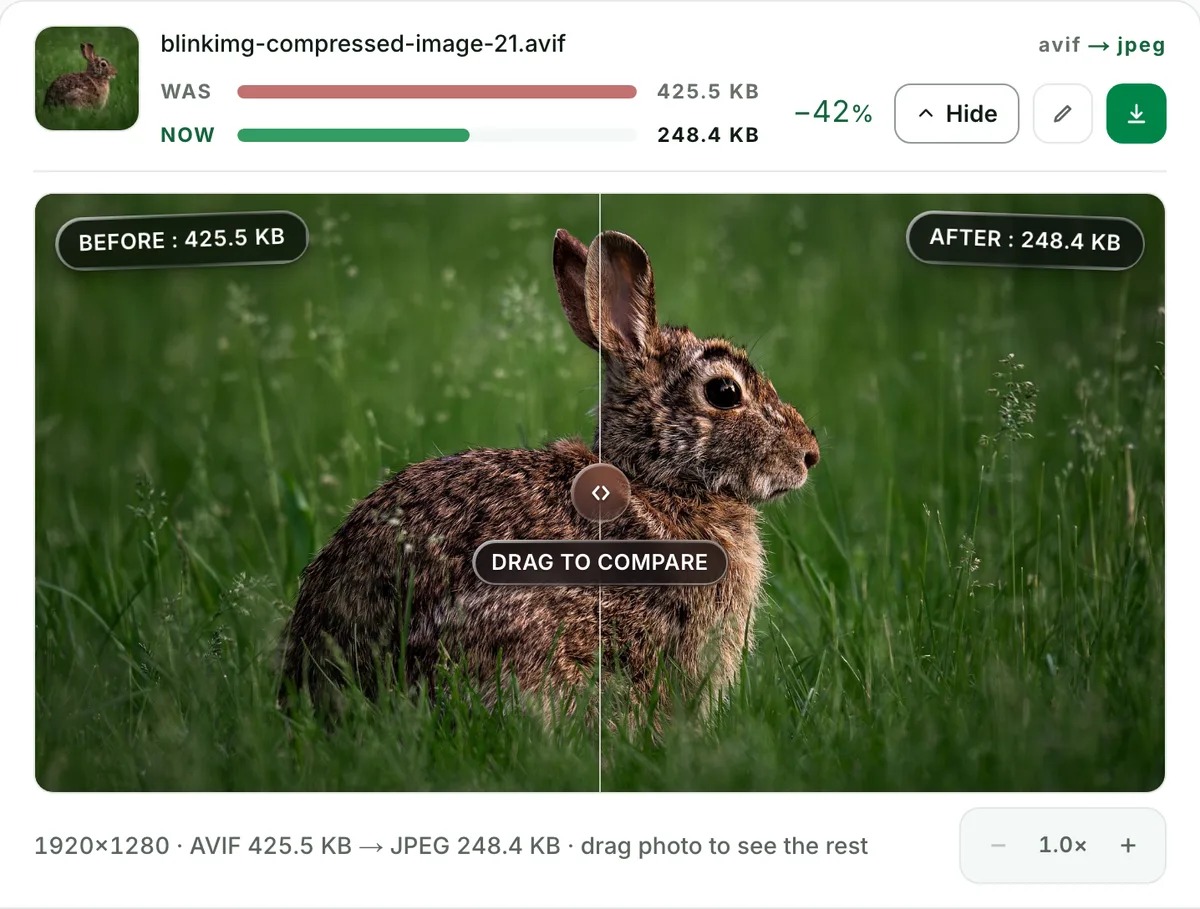
Yes, a little. A generation of loss is real but small at our settings. The AVIF is already lossy, and re-encoding at quality 85+ keeps the result visually identical in normal viewing. The compare slider shows your file before and after at 100% zoom, so the judgement is yours, not ours.
Q:Will the JPG be bigger than the AVIF?
Usually, and that is the correct outcome, not a bug. At each format's default our camera photo measured 288 KB as AVIF and 605.5 KB as JPG. Our 363 KB reference AVIF was saved well above the quality Auto picks, which is why it became a 340.4 KB JPG at quality 85 and 271.6 KB on Auto. You are trading bytes for universal compatibility either way.
Q:What happens to transparency when converting to JPG?
JPEG has no alpha channel, so we flatten transparent regions onto white, the industry-standard fill. The result preview shows the flattening before you download, never as a surprise. If your AVIF is a logo or cutout, convert to PNG instead and the transparency survives intact.
Q:How do I batch convert AVIF to JPG?
Drop up to 10 AVIF files at once. You get one run, one ZIP, and preserved filenames, with no signup, no watermark, and a 300-image daily allowance. The top-ranking converters for this pair run one file at a time. A folder full of files saved from the web is exactly what this batch flow is for.
Q:How do I convert AVIF to JPG on a Mac or iPhone?
On macOS Ventura or later, open the file in Preview, choose File → Export, and pick JPEG. On older Macs and on iPhone there is no clean built-in route, so the browser tool is the practical answer on both. It also handles 10 files where Preview handles one.
Q:Can Photoshop open AVIF files?
Yes, from Photoshop 26.8, the June 2025 release; older versions need a third-party plugin. For an editing workflow in any version, a PNG at quality 100 is the safer copy than a JPG: it holds the decoded image exactly and keeps transparency. Export whatever delivery format you need when done.
Q:How do I get the JPG under 100 KB for an upload form?
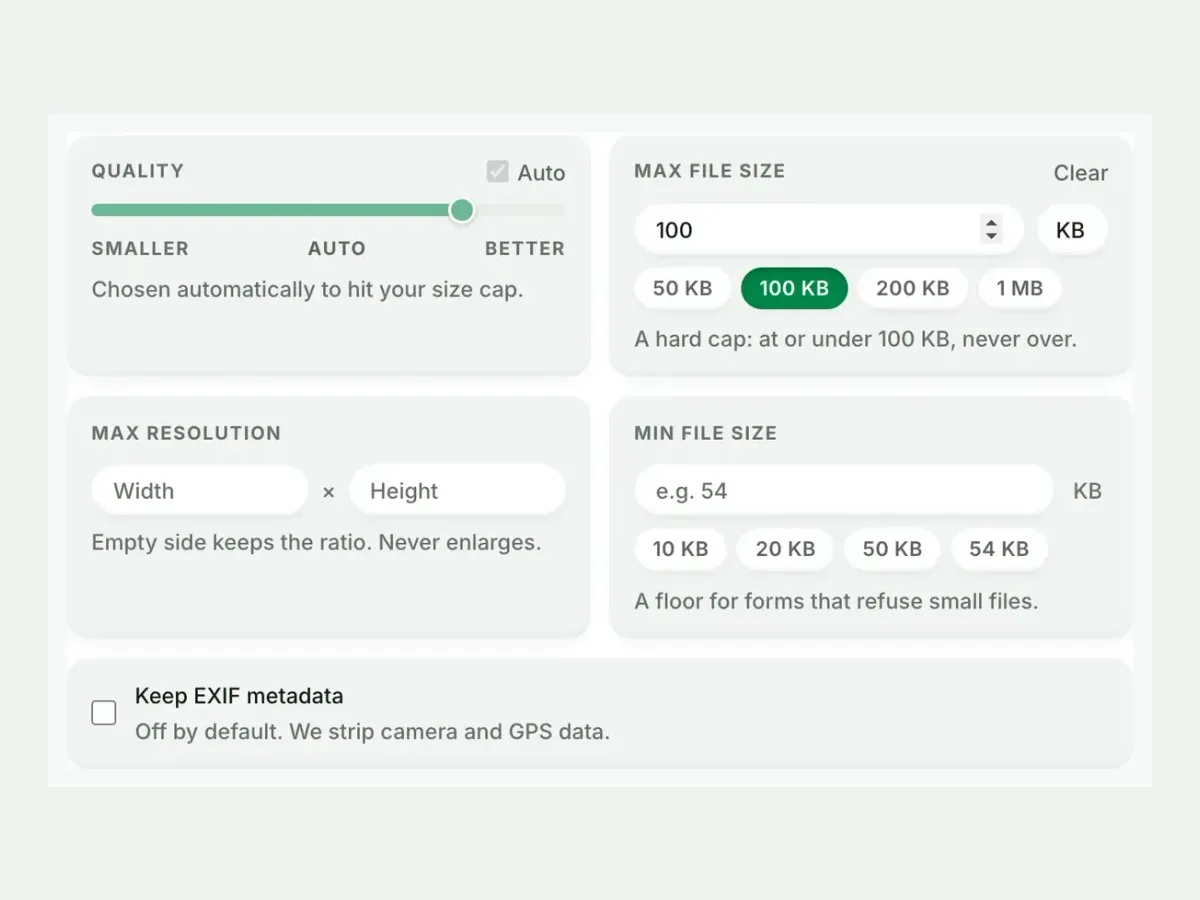
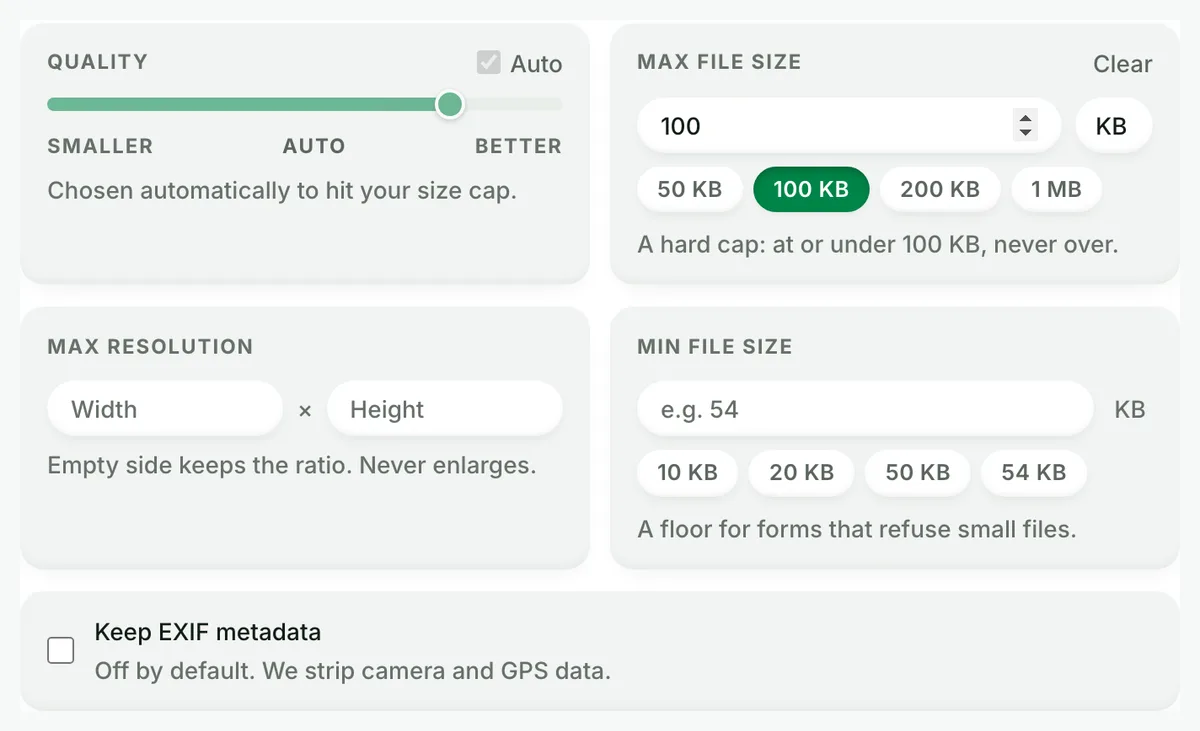
Set Max file size in Advanced settings to 100 KB (or 50/200/500) before converting. The cap is hard: we search for the highest quality that fits under it and never overshoot. One pass gives you a file that both opens everywhere and passes the form validator.
Q:Does this tool support animated AVIF?
No. We decline animated inputs with a clear message rather than silently flattening them to their first frame. Losing an animation without telling you is the dishonest failure mode. For animations, keep the AVIF or use a video format. For stills, convert freely.
Q:Is it safe to upload my files here?
Yes. We keep nothing: we process your files, wipe them automatically, and never archive or reuse them. We strip metadata from outputs by default, and no account is required. The conversion runs on our servers precisely so you don't have to install anything.