Compress image to 500 KB

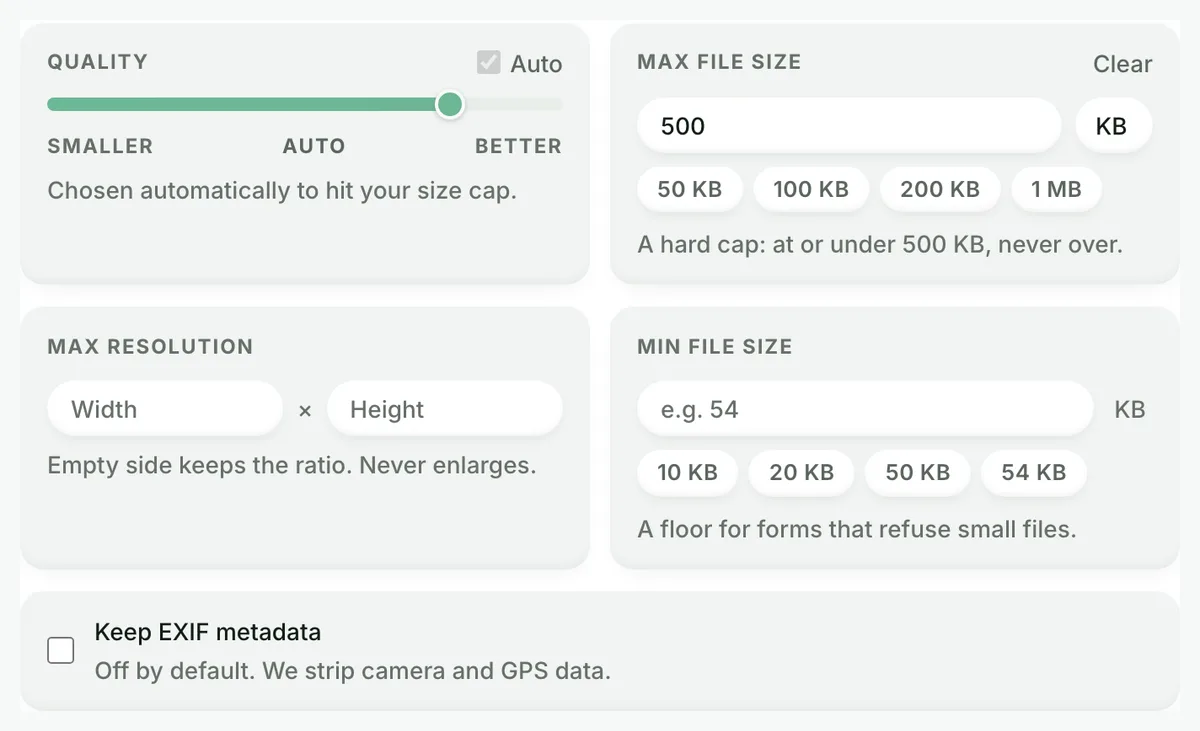
The 500 KB cap is already set. Drop your image and it comes back at or under the number, guaranteed, with the most quality the budget allows. Built for web pages, portfolios and generous portals.

Output format
– / –

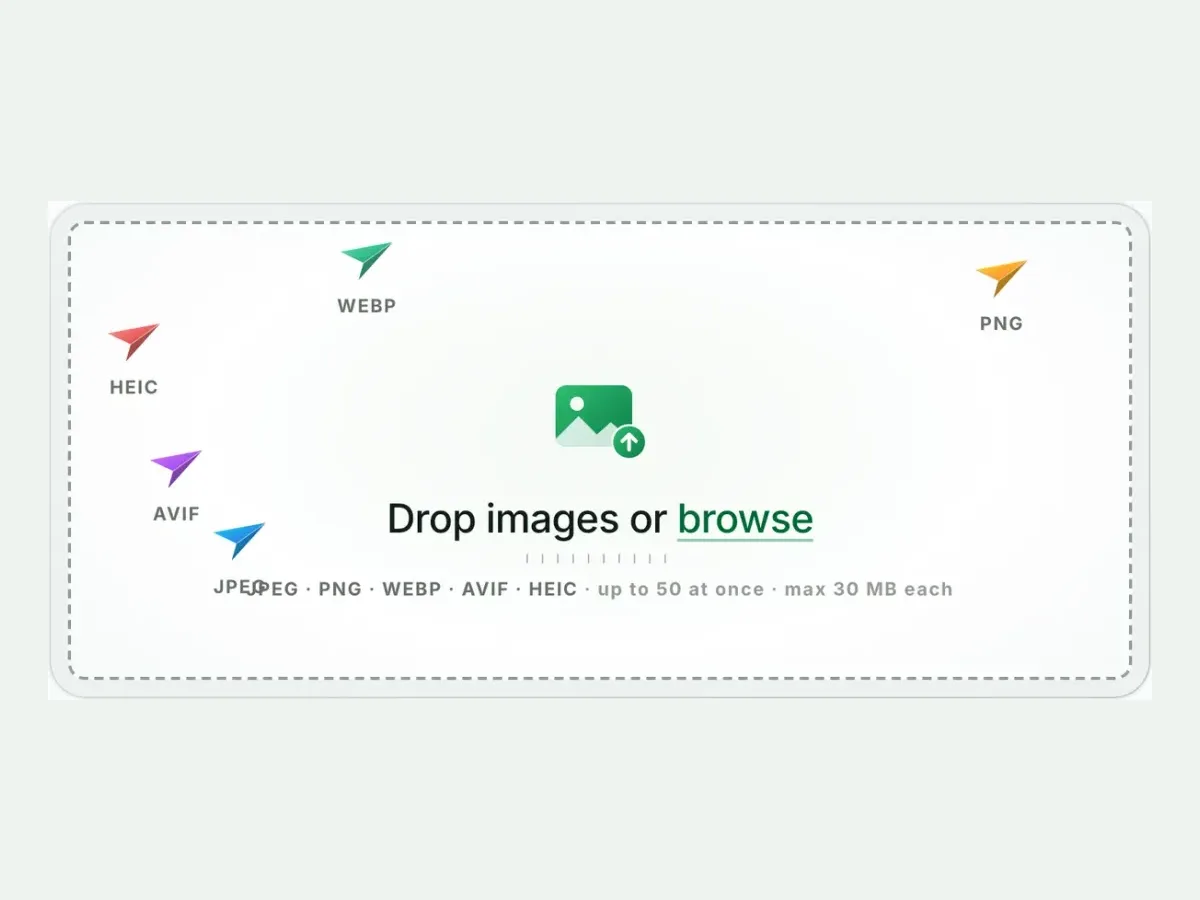
Drop images or browse

JPEG · PNG · WEBP · AVIF · HEIC · max 30 MB

HEIC
PNG
JPEG
AVIF
WEBP
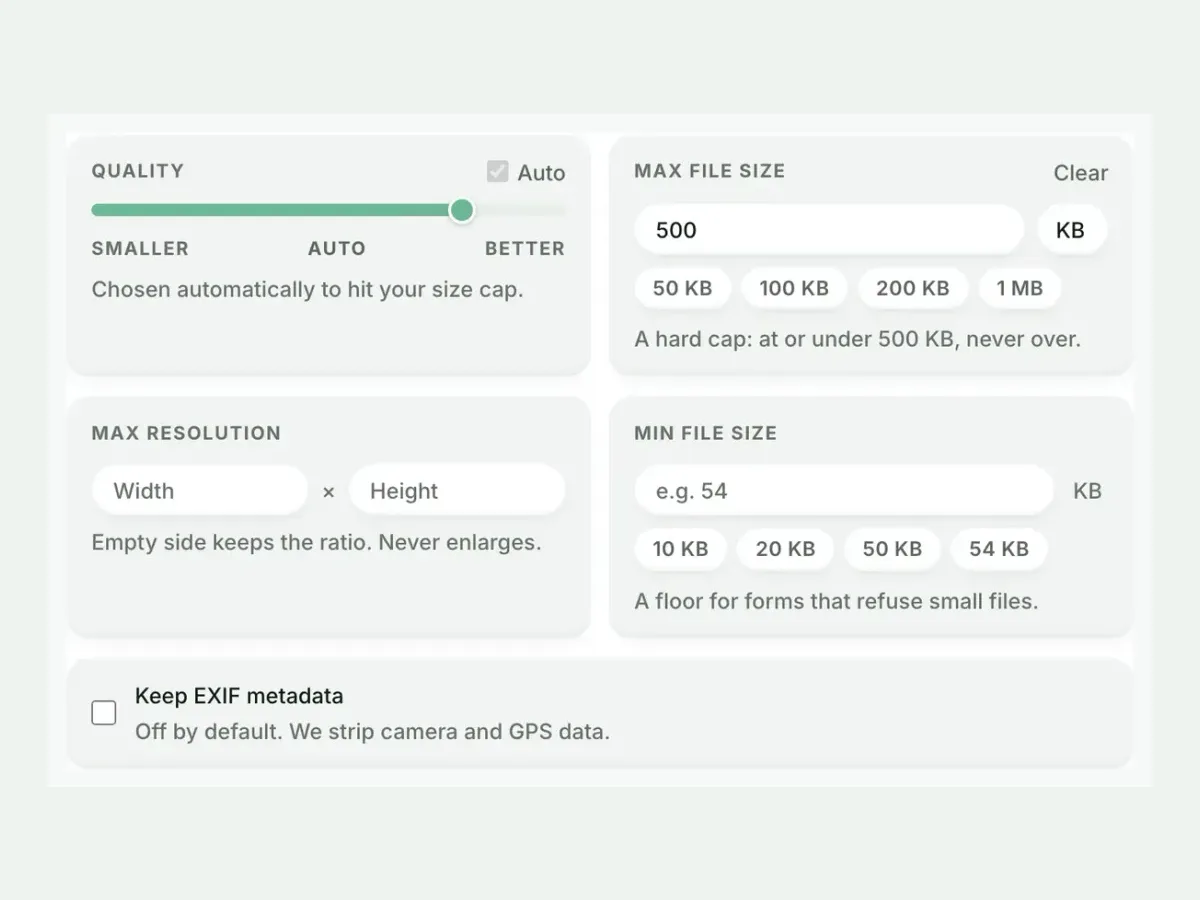
Advanced settings1 on
SmallerAutoBetter

Chosen automatically to hit your size cap.

A hard cap for “under 50 KB” portals.

Max resolution

Empty side keeps the ratio. Never enlarges.
Every size target, one guarantee

Same engine, same hard cap. Pick the number your portal demands.

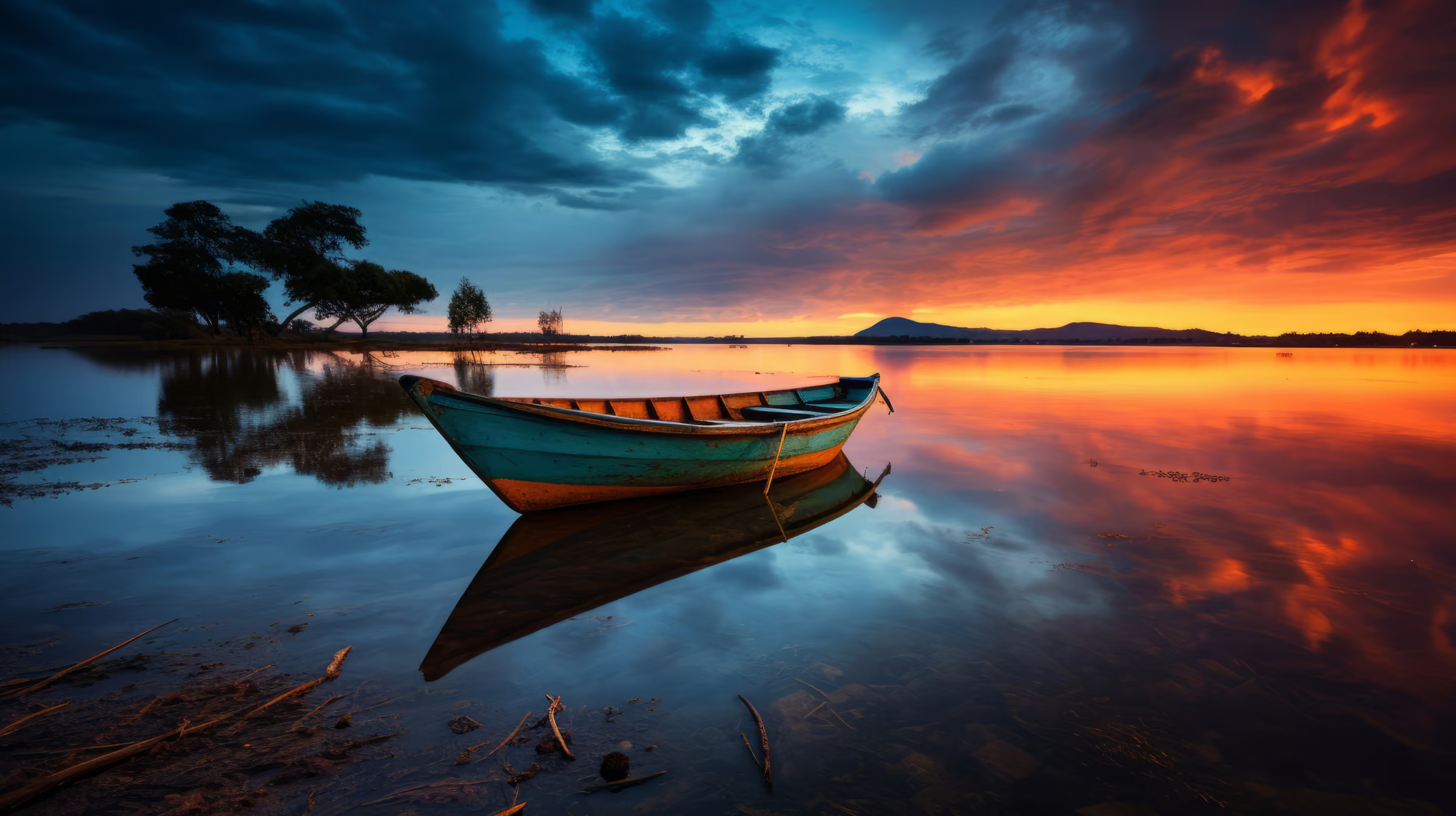
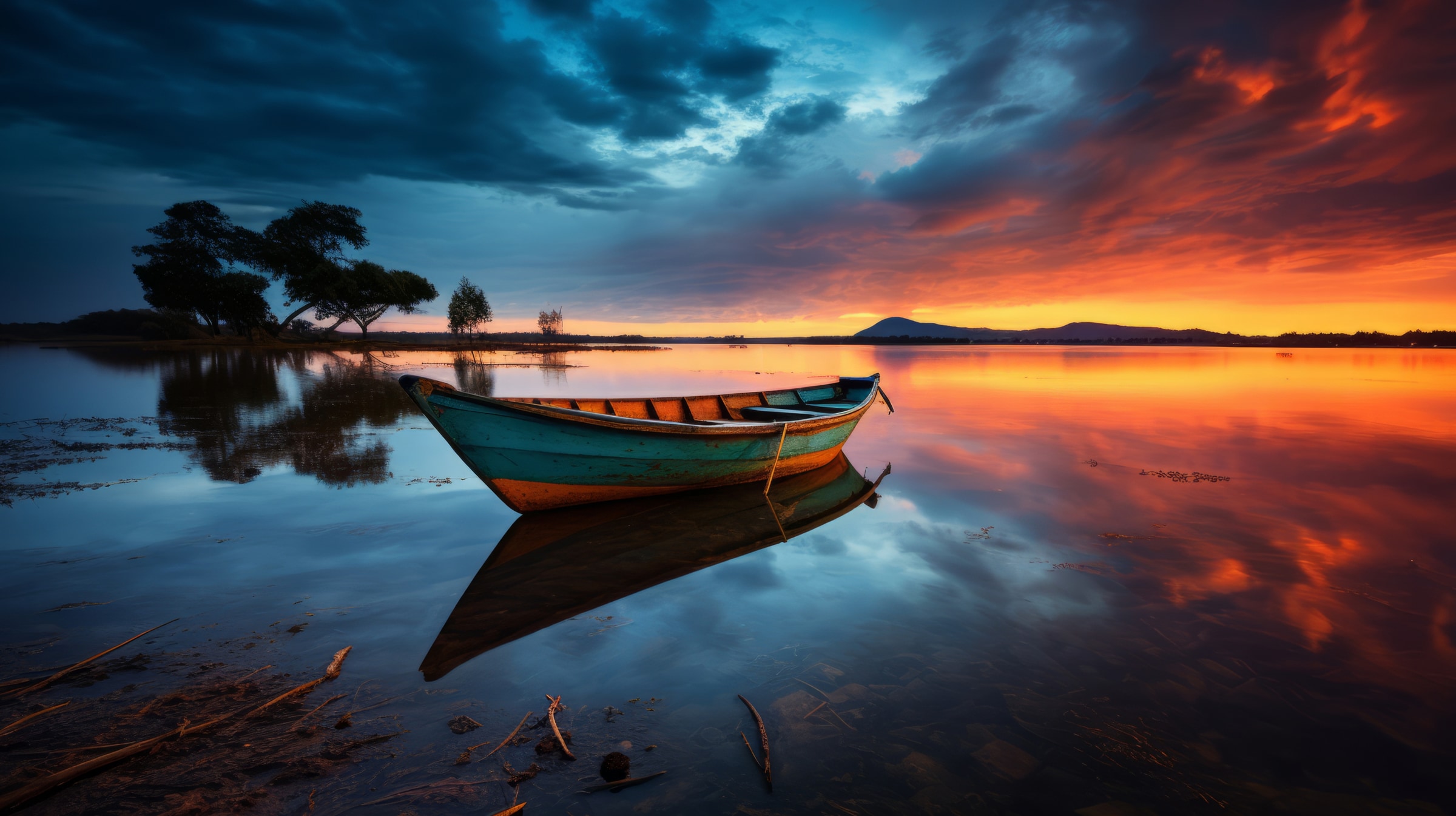
Original photograph, 9.4 MBOriginal · 9.4 MB
Same photograph as AVIF, 67 KBAVIF · 67 KB
99.3%
The engine behind the cap, on a real photograph: 9.8 MB in, 69 KB out. Your file gets the same treatment with your size limit as the hard ceiling.

How the 500 KB guarantee works (and why sliders can't make it)

The tools ranking for this search today hand you a quality slider and hope. Results land near the number and routinely over it, so you re-run until it happens to fit. Here the cap is the input, not the outcome. The engine binary-searches quality for the most detail that fits at or under 500,000 bytes. If no quality fits, it shrinks dimensions, down to a 64-pixel floor, before it ever gives up. A target that truly can’t be met fails with a clear error instead of a silently overweight file. Never over the limit is the whole promise. We have not found a page ranking for this search that makes it.

One photo, every cap, measured

CapResultDimensionsNote
20 KB19.6 KB800×600quality search alone
50 KB49.6 KB800×600quality search alone
100 KB90.6 KB800×600quality search alone
200 KB188.3 KBuntouchedoriginal kept as-is
500 KB188.3 KBuntouchedoriginal kept as-is
From MB territory49.2 KB800×600a 1382.4 KB PNG, converted to JPEG, under a 50 KB cap

Source: photo.jpg, 188.3 KB at 800×600. The 200 and 500 KB rows show the never-larger guard: a file already under the cap comes back untouched.

How these numbers are measured: every byte count on this page is the size of the actual encoded file our engine produced from the named source image. Those are the same bytes you would download, not an estimate or a best case. Rerun any of them yourself: drop your own file into the tool above and the meter reports your real result.

The 500 KB jobs: web images, portfolios, generous limits

Half a megabyte is the polite ceiling: big enough for genuinely high-quality photography, small enough to keep a page fast. It suits portfolio images, blog heroes and the many systems that cap uploads at 500 KB. Most camera exports need only a light touch to comply. Files already under the cap come back byte-identical, courtesy of the never-larger guard. For web work, consider going further. At this budget, AVIF or WebP buys visibly more quality per kilobyte than JPEG.

The dimension and target trade-off the slider tools never explain

Bytes pay for pixels, so the two levers trade directly. A tight cap on a huge image spends the whole budget holding pixels together. The same cap on a sensibly-sized image buys visible quality. That is why the engine’s escalation order is quality first, dimensions second. It is also why, for extreme targets, setting Max resolution yourself (in the same Advanced panel) is the pro move. A portal photo rarely needs more than ~1,500 px on its longest side. Freeing those bytes lets the quality search keep the face sharp instead of the noise. Our measured table above shows both regimes on real files.

ID photos, signatures, documents: the privacy defaults

The files people compress to a government portal’s cap are the most sensitive files on the internet: passport photos, signatures, ID scans. The defaults here assume exactly that. We strip EXIF and GPS from every output, so a photographed document stops carrying where it was taken. We keep nothing: we process files and wipe them automatically, never archive, never reuse. You need no account to use this page, so nothing ties an upload to a person. No page ranking for this search states any of this.

When 500 KB is the wrong tool

  • The portal wants under 10 KB? Below the size field's 10 KB floor, photographic quality collapses. Crop tight and shrink dimensions with the resize tool first, then apply the smallest cap.
  • A screenshot or line art fighting a tiny cap? Convert it to JPEG (or WebP) first. A photographic codec reaches small caps PNG structurally cannot.
  • No rule demands a size? Use Auto instead. It usually lands smaller than you expect without betting quality on an arbitrary number.

Dimensions the real problem? Resize image. Portal dictates the crop too? Crop image.

Questions, answered

The cap is already armed above. One drop settles most of these.

How do I compress an image to exactly 500 KB?
Drop your file. Every Blinkimg size page arrives with its cap pre-armed in Advanced settings, 500 KB in this case. The engine binary-searches quality (and, under an extreme cap, dimensions) until your file fits at or under 500,000 bytes, never over. No slider guesswork. No re-running until it happens to fit.
Can I compress to 500 KB without losing quality?
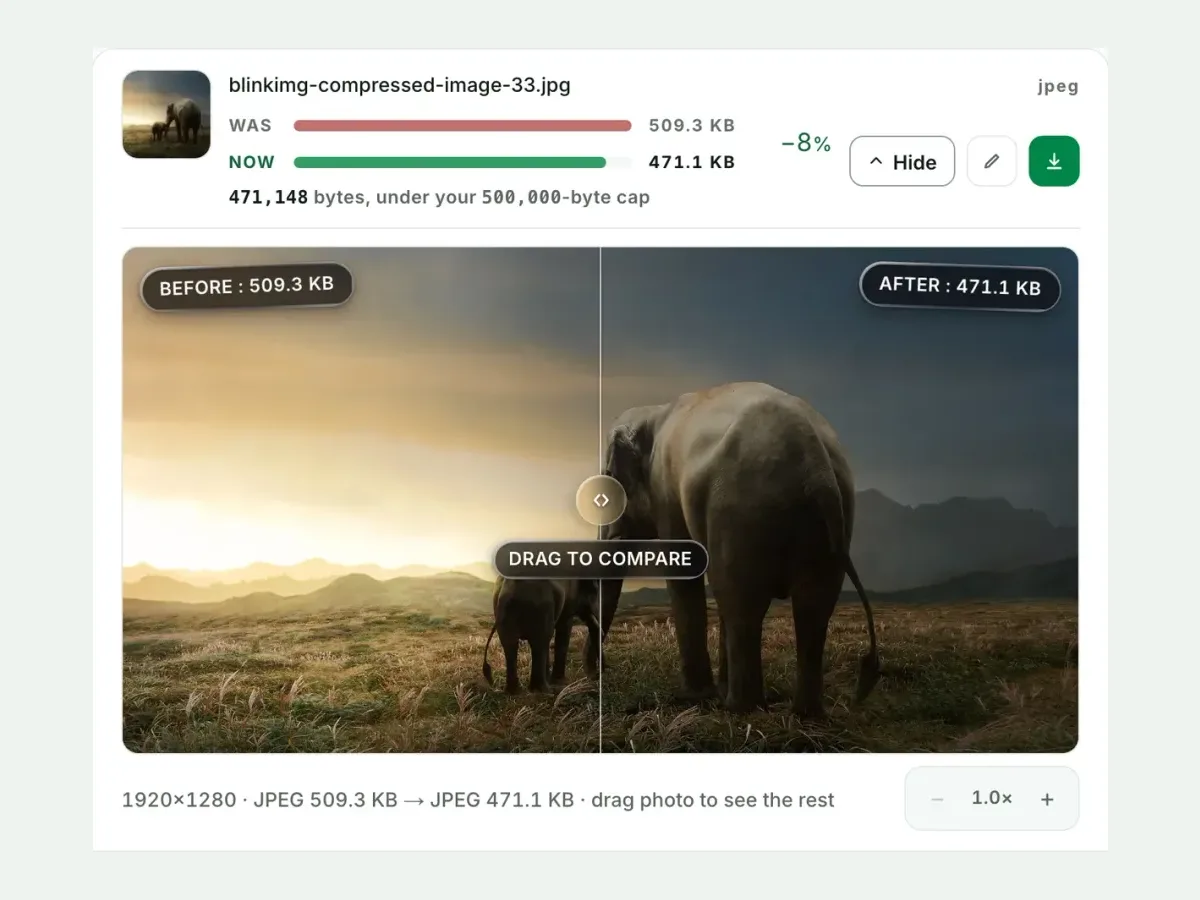
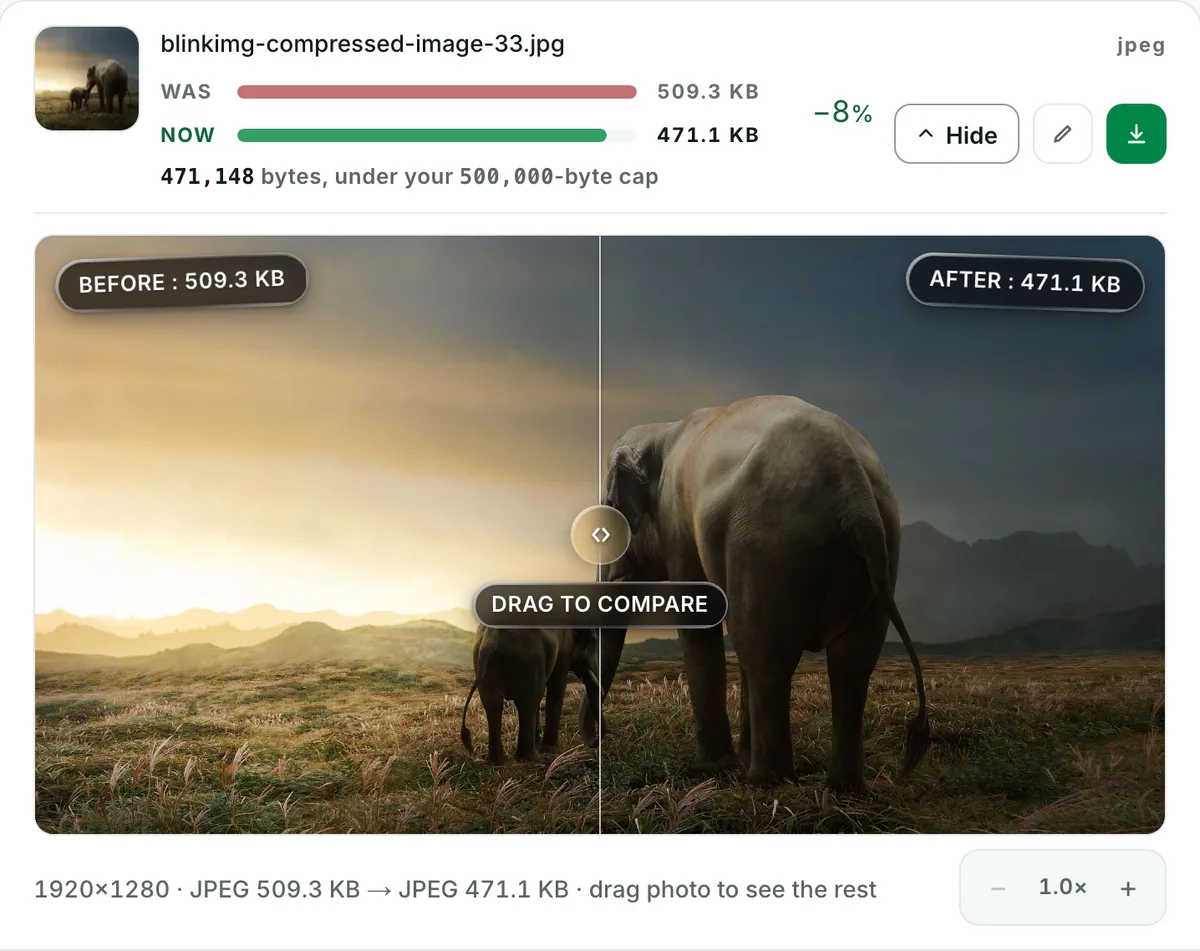
Honestly: a cap is a quality decision. The engine spends the budget on as much quality as 500 KB buys. Our 188.3 KB reference landed at 49.6 KB under a 50 KB cap and still reads as the same photo. The compare slider on every result shows exactly what your budget bought.
What happens if my image cannot reach the target?
You get a clear error naming the cap: never a silently overshot file, and never mush. Before giving up, the engine also shrinks dimensions, down to a 64-pixel floor. Genuine failures are rare, and they almost always mean the cap is below what the size field allows.
Does reducing the dimensions help hit a KB target?
Enormously. Pixels are what bytes pay for. Our 1382.4 KB test PNG, converted to JPEG, reached 49.2 KB under a 50 KB cap. For extreme targets, cap resolution first with Max resolution in Advanced settings: it buys the quality search far more room. The engine will do this itself if the cap demands it.
Can I compress many images to 500 KB at once?
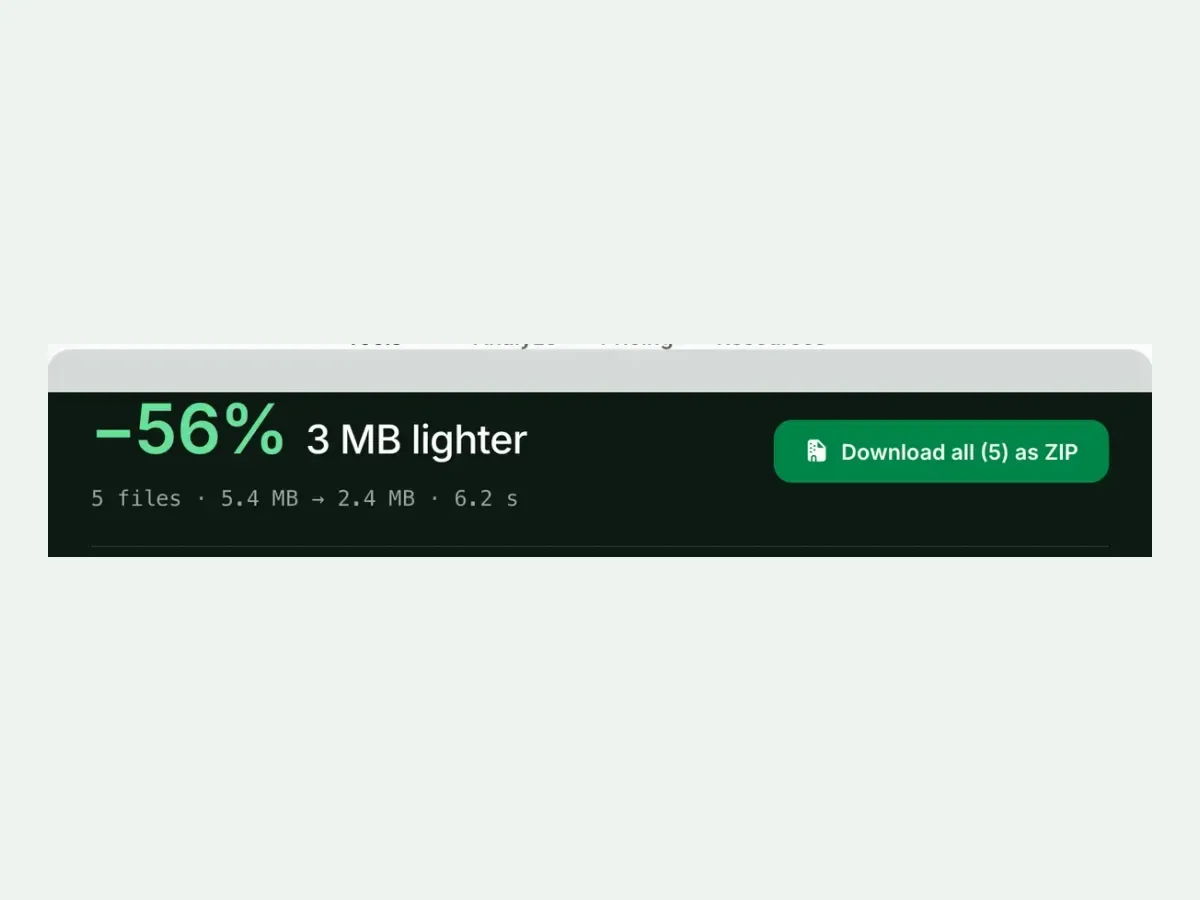
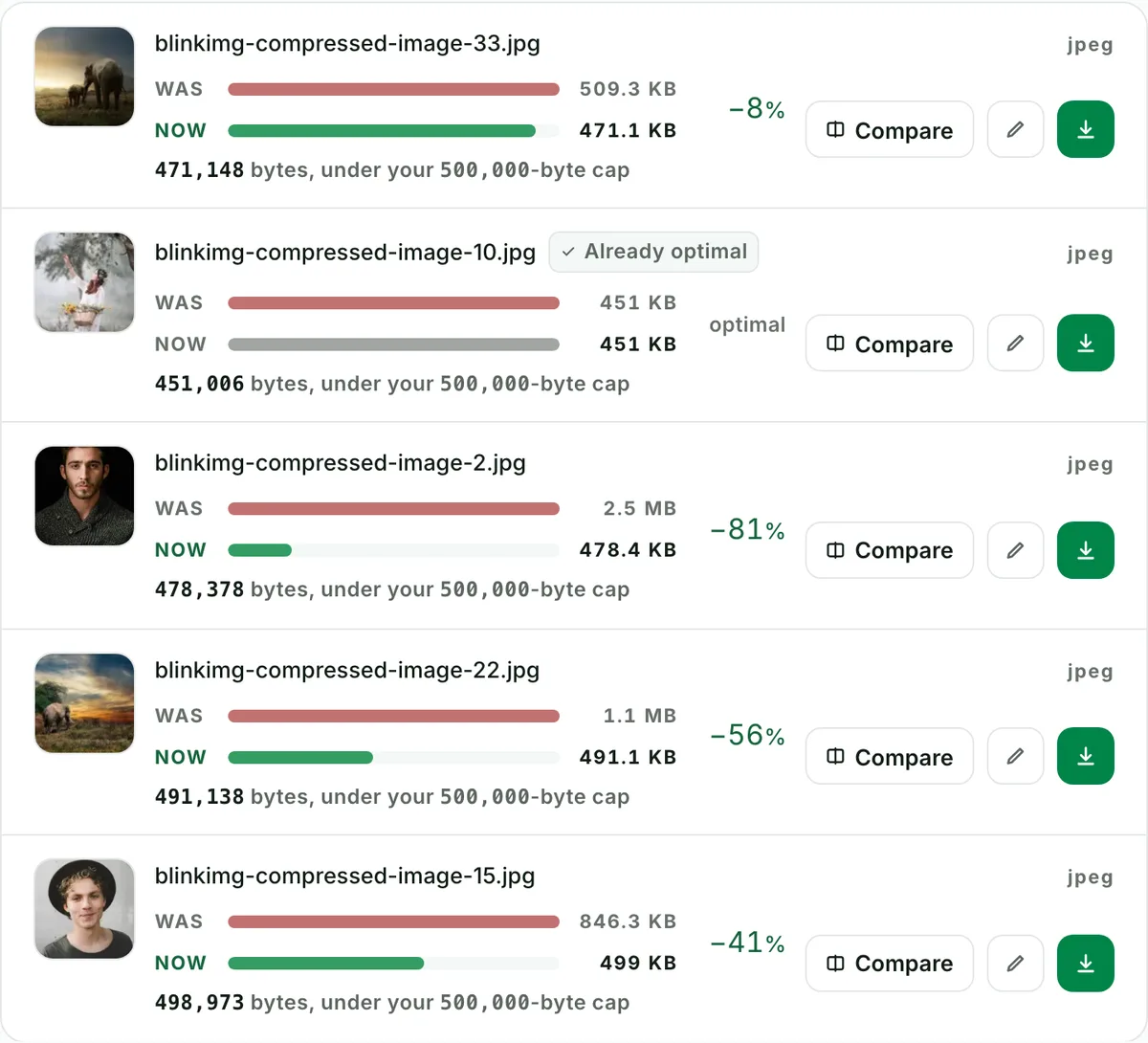
Yes: fifty per batch, one cap applied to every file, one ZIP out with filenames preserved. Each row reports its measured output size, so a folder of portal uploads is one drag. It is free, with no signup and no watermark, and a 300-image daily allowance counted live beside the tool.
Is it safe to upload ID photos and signatures here?
Yes. These size pages exist for documents, so the defaults assume them. We strip EXIF and GPS from every output. We process files and wipe them automatically: we keep nothing. You need no account, so nothing ties an upload to you. The privacy policy carries the detail.
Should I use JPEG or PNG to hit a small KB target?
JPEG, almost always. Photographic content compresses several times smaller as JPEG, and portals overwhelmingly expect it. PNG earns its bytes only for line art and screenshots. A photo saved as PNG may not reach a tight cap at all without a format change first.
Will the result be exactly the target size, or under it?
At or under, never over. That is the entire guarantee. The search maximises quality within the budget, so results land close beneath the cap when the image needs the room (90.6 KB against 100 KB on our reference) and further under when it doesn't.
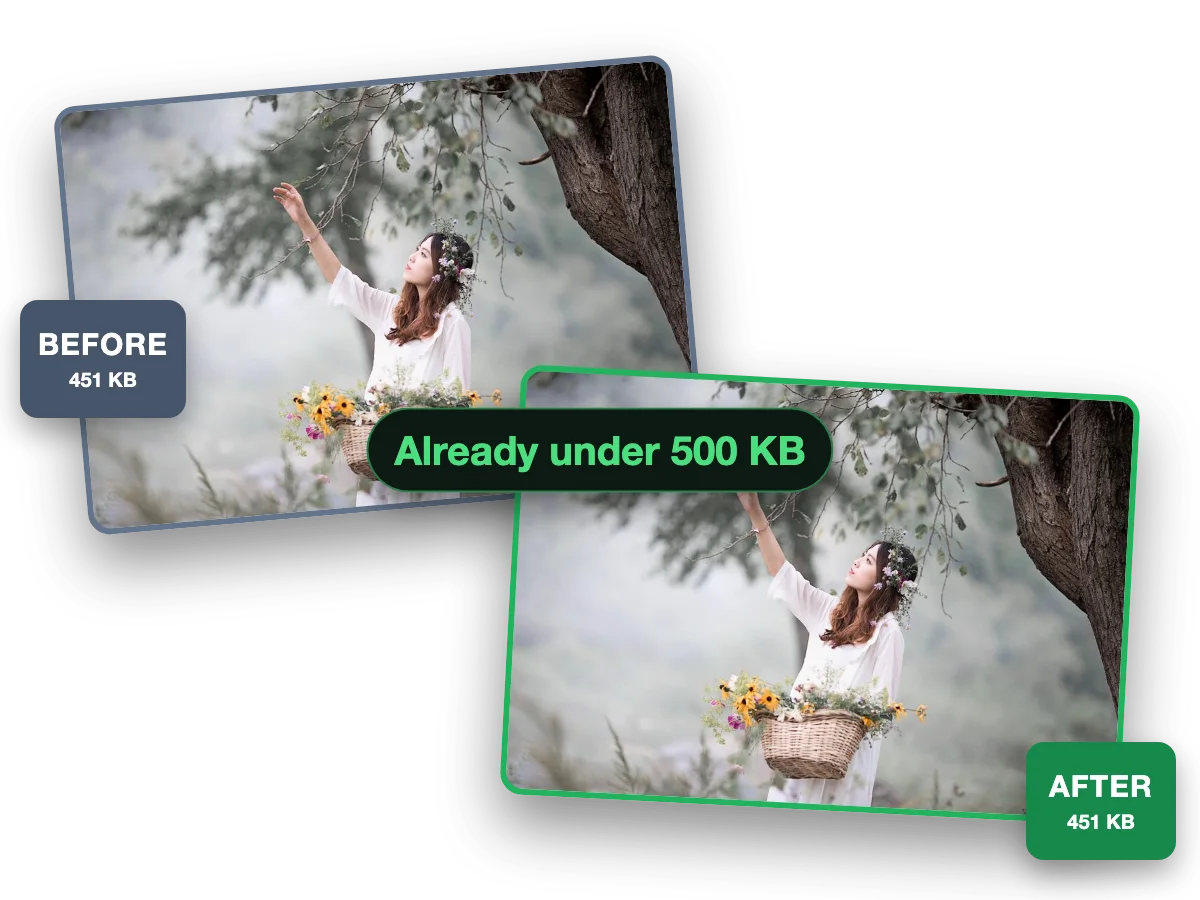
What if my file is already smaller than the cap?
When a re-encode can't beat it and there's no metadata to strip, you get your original bytes back. Our EXIF-free reference under a 500 KB cap is recorded as returned-original. Files carrying EXIF always get the stripped re-encode, because privacy outranks the byte count.
Does this work for PNG, WebP, HEIC and phone photos?
Yes: every input the site accepts works, meaning JPG, PNG, WebP, AVIF and iPhone HEIC. These size pages preselect JPEG output, the format portals expect. HEIC or PNG in, capped JPEG out is the default single pass. The format picker switches the output when you want something else.
Is 500 KB small enough for a website image?
It is the sensible ceiling for a hero image, and generous for anything smaller. Slow 4G costs roughly a quarter second per 100 KB, so half a megabyte is a real but acceptable cost for the one image that defines the page. Everything else on the page should sit far under it.
My photo is already under 500 KB. Why did nothing change?
Because nothing needed to change. When the re-encode can't beat your original and there's no metadata to strip, the guard returns your original. Our EXIF-free 188.3 KB reference is recorded as returned-original under the 500 KB cap. Files carrying EXIF get one stripped re-encode instead.
Should web images use the 500 KB cap or a modern format?
Both, ideally. Convert to AVIF or WebP and apply the cap in the same pass. The format switch typically buys more than the cap does. The converter pages run the same engine with the same Max file size control, so it is one drop either way.

Ready when your 500 KB deadline is

Drop the file above. The cap is set, the guarantee holds, the portal accepts.

Compress to 500 KB