Flip an image: mirror it horizontally or vertically
Drop an image and mirror it in one tap: horizontally (the classic selfie fix) or vertically. The flip previews instantly and combines freely with crop, rotate and colour edits. The saved file comes out compressed. One of the image tools.
Output format
– / –
Drop images or browse
JPEG · PNG · WEBP · AVIF · HEIC · up to 50 at once · max 30 MB each
HEIC
PNG
JPEG
AVIF
WEBP
Advanced settings1 on
SmallerAutoBetter
Auto tunes each image.
A hard cap for the number your form demands.
KB
A floor for forms that refuse small files.
Max resolution
×
Empty side keeps the ratio. Never enlarges.
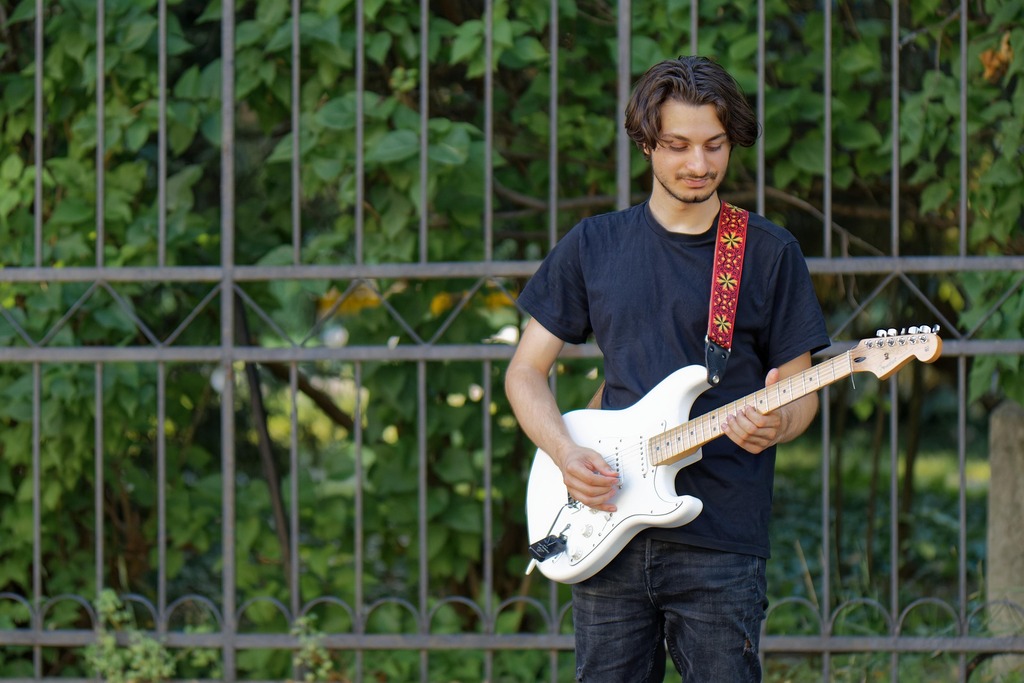
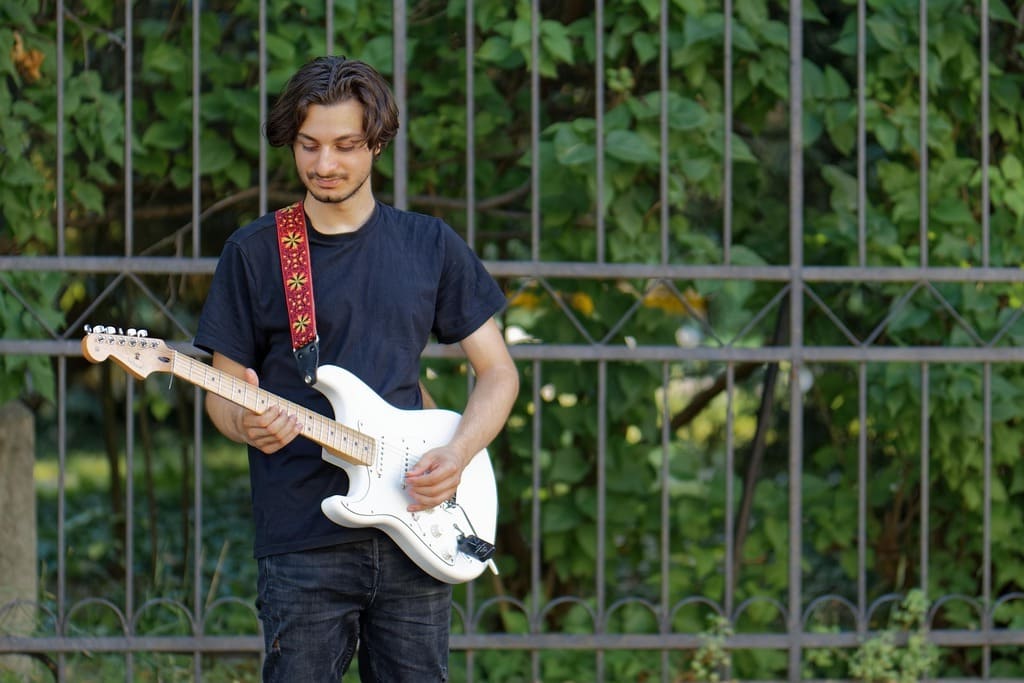
A real flip, before and after
Original · 164.3 KB
Flipped · 82.3 KB
−50%
One of our photographs, actually flipped in the editor and saved by our engine; the sizes are the real files'. Drop your own image and do the same.
How it works
Drop, flip, save
Three steps, no account. The file leaves smaller than it arrived.
01
Drop
Drop an image and the editor opens on it instantly.
02
Flip
Mirror horizontally or vertically with one tap.
03
Save
The flipped file comes out optimised and ready to download.
Flip vs mirror image vs mirror effect: a 10-second disambiguation
Three searches, and two of them are the same thing. A horizontal flip and a mirror image are identical: left and right swap, like your reflection. A vertical flip swaps top and bottom. It is not the fix for a photo that came out upside-down: that needs a 180° turn, because a flip leaves it mirrored. A "mirror effect" is the photo and its reflection side by side, water-reflection style. That is a collage composition, not a flip. You'd build it in a layout tool. This page does the first two, one tap each.
Mirroring for Cricut, iron-on and heat-transfer vinyl
The rule that saves a hundred ruined shirts: mirror before you cut HTV, always. You cut heat-transfer vinyl with the design face-down, carrier sheet against the fabric. So an un-mirrored design presses on backwards, and text is unreadable. Flip your design horizontally here, then send it to the cutter. The one exception: printable iron-on for light fabrics is usually NOT mirrored, because it applies face-up. Dark-fabric printable transfers vary. Thirty seconds checking your material's instructions beats re-cutting. When in doubt with standard HTV: mirror it.
Un-mirror my selfie: why you look "wrong" in photos
Front cameras show you a mirrored preview, the face you know from the bathroom mirror, then save the un-mirrored reality. That's why your selfies feel subtly off to you while looking perfectly normal to everyone else: you are the only person on earth used to seeing yourself mirrored. If you prefer the you that you recognise, flip the saved selfie horizontally. One tap above does it. (Asymmetric details like hair partings and text on clothing will swap sides. That's the point.)
The reversed-text problem, and the workflows around it
A horizontal flip reverses everything in the frame, and text, logos and signage are where it shows. Three workflows cover it. For heat transfer, backwards is correct: it reads properly once pressed. For design work, flip the photo layer only, then re-add text the right way round (our editor's text tool runs in the same session). For photos with incidental signage, accept it or crop it. A street sign reading backwards is the tell-tale of a flipped photo.
Does flipping cost quality? The flip itself, no; the save, a little
1
The flip is pixel-exact
Flipping moves every pixel to a mirrored position: no resampling, no interpolation, no blending. Unlike scaling or free rotation, there is mathematically nothing to soften. That holds up to 32 megapixels; the editor scales a bigger photo down when it saves.
2
The save: one new file
Saving writes one optimised file for the whole edit session, whether you flipped once or flipped, rotated and cropped together. The editor sends a lossless PNG, or the best JPEG that fits your plan’s limit. The engine then encodes the file once at Auto. The result is typically smaller than the file you dropped in.
3
You can verify it
The result row's compare view puts original and flipped side by side with measured sizes. Inspect at full zoom before downloading, like every tool on this site.
When a flip isn't the fix
Photo is sideways, not mirrored?
That's rotation, usually an EXIF orientation quirk. Rotate image turns it upright and saves one optimised copy.
Horizon is tilted a few degrees?
That's straightening, not flipping. The rotate tool's fine-angle dial with auto-crop handles it.
Animated GIF or WebP?
The editor works on stills and says so. It will never silently export just the first frame.
Short answers specific to this tool. Try it above and the editor settles the rest.
Q:What is the difference between flipping and mirroring an image?
Horizontally, nothing: a horizontal flip IS a mirror image. Left and right swap, as in a bathroom mirror. A vertical flip turns the image upside-down instead. People also search for a "mirror effect": the photo plus its reflection side by side. That is a collage, not a flip.
Q:How do I flip an image horizontally versus vertically?
Drop the photo in the editor and tap Flip. Horizontal swaps left↔right (the mirror). Vertical swaps top↕bottom (upside-down). Both take one tap. You can combine either with rotation in the same session, and the result saves as an optimised copy.
Q:How do I fix an upside-down image: flip or rotate?
It depends on how it got that way; any text in it tells you. Text that reads normally with the screen turned around means a 180-degree rotation: two quarter turns in the editor put it right. Text that still reads backwards means a top-to-bottom flip: one vertical flip fixes it. A vertical flip on a rotated photo leaves it mirrored.
Q:Does flipping an image reduce its quality?
The flip itself costs nothing: every pixel moves to a mirrored position, and none are invented or blended, up to 32 megapixels. The saved JPEG is one new encode at Auto, so it loses a little. The editor's upload before it is lossless when a PNG fits your plan's limit. The compare view shows you the result before download.
Q:Can I mirror a PNG and keep its transparent background?
Yes. A PNG with a transparent background saves as a PNG after the flip, the transparency intact, so a mirrored logo or cut-out still sits cleanly on any colour. A PNG with no transparency stays a PNG under Auto. Pick JPG in the format picker for a smaller photo. Either way the flip only moves pixels; it never blends them.
Q:Do I need to mirror my design before cutting iron-on vinyl?
Yes. Always mirror heat-transfer vinyl (HTV) and iron-on transfers before cutting, because the design is applied face-down. Skip it and your text irons on backwards. The one exception: printable iron-on for light fabrics is usually NOT mirrored. Check your material's instructions.
Q:Why do my selfies look wrong compared to the mirror?
Your phone's front camera shows a mirrored preview, like your bathroom mirror, but saves the un-mirrored truth. That is why the photo looks "off" to you while looking normal to everyone else. To get the you that you recognise, flip the saved selfie horizontally. One tap does it.
Q:Why does text in my image read backwards after flipping?
A horizontal flip reverses everything, and text is where you notice. If the text matters, flip only the photo layer in an editor and re-add the text afterwards. For heat-transfer work, backwards is exactly what you want before pressing: it reads correctly once applied.
Q:Can I flip several images at once?
The editor works one image at a time for precision. For a folder of photos, run them through in sequence. Each opens, flips in one tap, and saves optimised. No signup, no watermark, within the same free daily allowance as every tool here. Several competitors gate any batch editing behind a paid tier.
Q:Can I flip an animated GIF or WebP and keep the animation?
No, not here. The editor works on stills, and we say so rather than silently exporting only the first frame. For animated flips, a video tool is the honest recommendation. For a single frame of an animation, screenshot it and flip that.
Q:Does flipping remove my photo's EXIF and location data?
Yes, always. The editor redraws the flipped picture, so the saved copy carries none of the photo's EXIF metadata: no GPS coordinates, capture time or device model. That is the safe result for anything you'll post publicly. Unticking Remove EXIF metadata cannot bring the camera fields back to an edited copy.
Q:Can I flip and rotate an image at the same time?
Yes. Flips and quarter-turn rotations combine freely in the same edit session, along with straightening, cropping and the rest of the editor. One save at the end applies everything, and the engine encodes that one file once. Saving after each operation would cost a JPEG a little quality every time.
Q:Is this free, and what happens to my photo?
Free, no signup, no watermark. And we keep nothing: your photo is processed and wiped automatically, never archived, never used for anything else. The flipped copy you download is yours to keep. The upload is gone once the flip is done, and no account was needed to make it.